The old way
- 1Configure DDNS, a IP, or the router
- 2Expose NAS services to the internet
- 3Remember addresses, ports, and entry points
- 4Reconfigure settings whenever network environments change
Secure remote access to your NAS, zero public internet exposure.
Connect to your home QNAP NAS anywhere via HomiPlay—zero complex setup.
Never worry about leaving critical data behind at home. HomiPlay establishes a secure tunnel directly to your home NAS, allowing you to access files and sign in to the management dashboard anytime via a web browser—no complex setup required.
Sign in to QNAP QTS, open App Center, then install and launch Container Station.
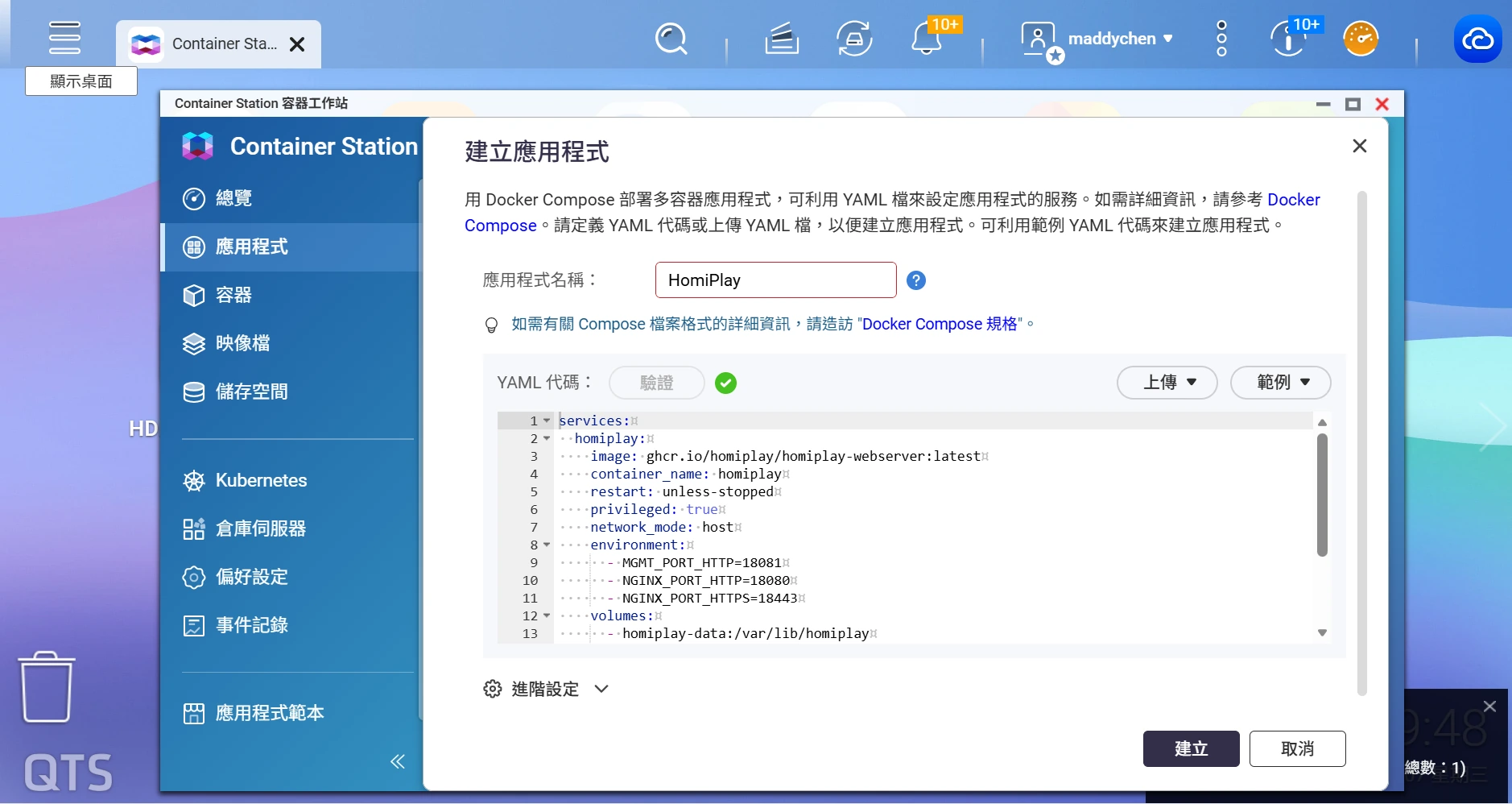
In Container Station, go to Applications > Create on the left menu.
Enter an application name : homiplay, paste the Docker Compose configuration below into the YAML editor, and click Create:
services:
  homiplay:
    image: ghcr.io/homiplay/homiplay-webserver:${HOMIPLAY_VERSION}
    container_name: homiplay
    restart: unless-stopped
    privileged: true
    network_mode: host
    environment:
      MGMT_PORT_HTTP: "18081"
      NGINX_PORT_HTTP: "18080"
      NGINX_PORT_HTTPS: "18443"
    volumes:
      - homiplay-data:/var/lib/homiplay
      - homiplay-logs:/var/log/homiplay
      - homiplay-nginx-ssl:/etc/nginx/ssl
volumes:
  homiplay-data:
  homiplay-logs:
  homiplay-nginx-ssl:
💡 For more details and advanced options, refer to the official
README Web Server Docker
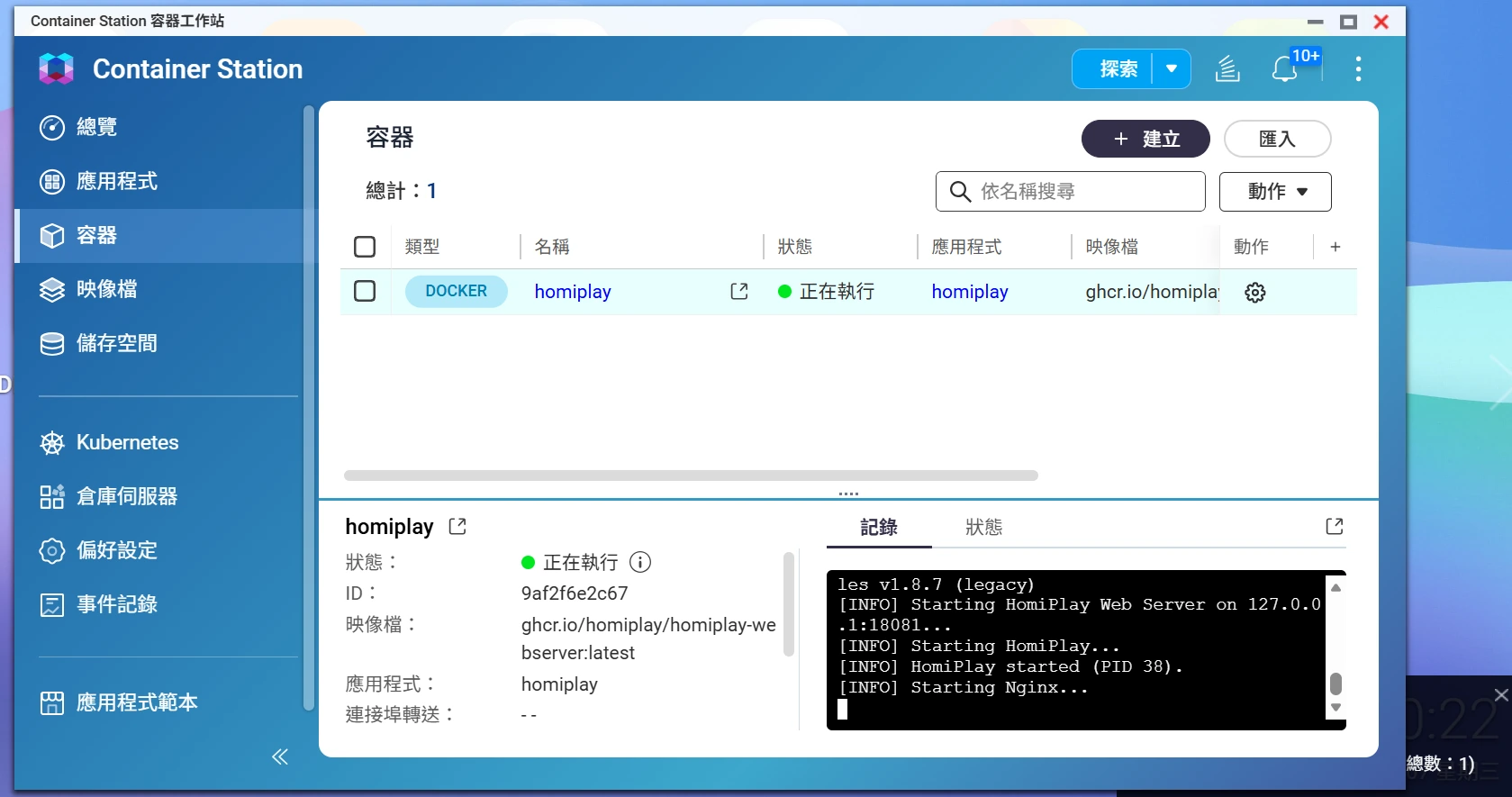
Once deployed, verify that the Homiplay container status displays as running in the container list.
https://<NAS_IP>:18443) and sign in to your account.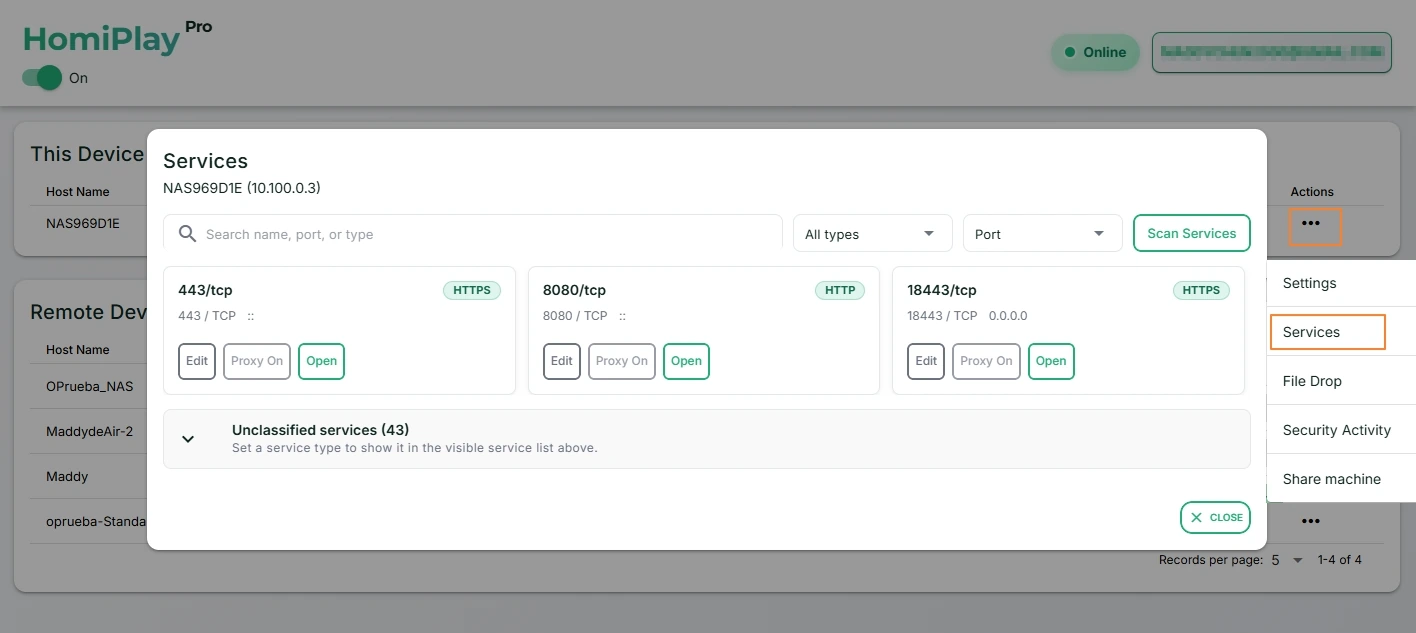
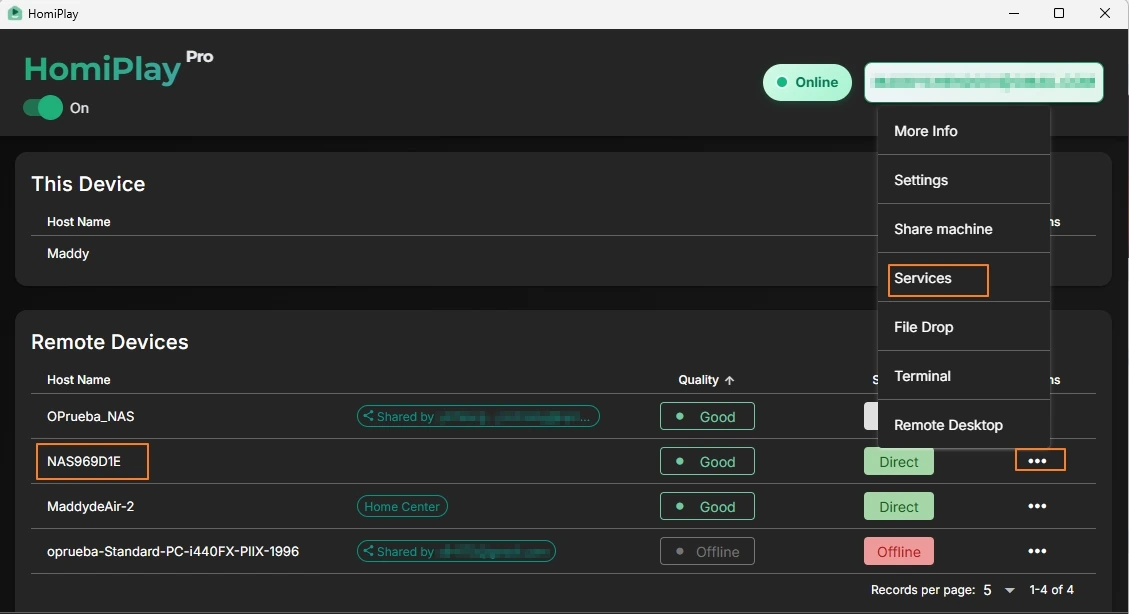
Open HomiPlay on your remote device, find your NAS in the remote device list, click Services in the right-side menu, and enable the target service.
The system will open a dedicated connection URL in your browser (or you can directly enter the virtual IP and port, e.g., 10.100.0.3:8080), to load your QNAP login page directly in your browser.
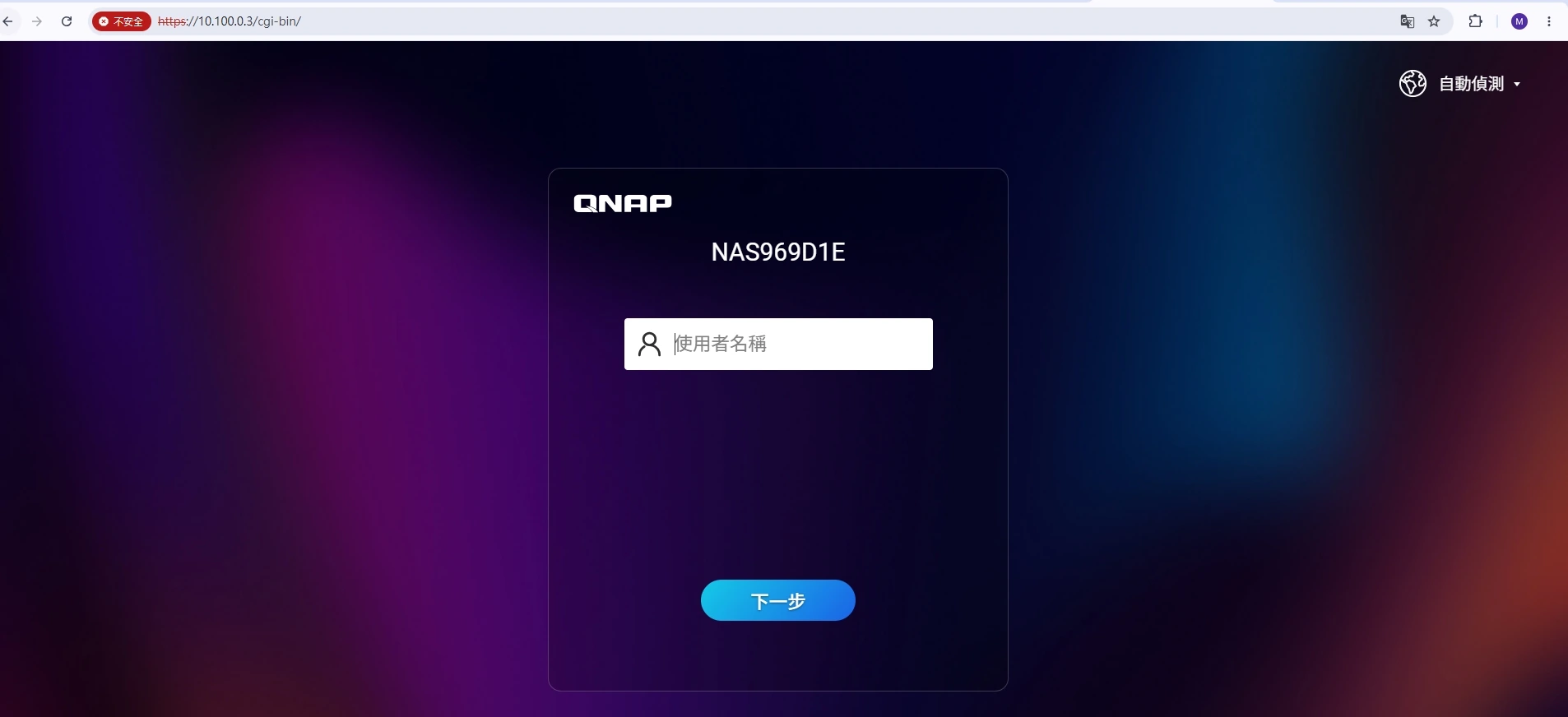
HomiPlay provides a dedicated encrypted connection to your QNAP NAS. Once service ports are enabled, select the NAS service on your remote device to open its sign-in page in a browser.
Let them approve the connection at their computer, then help from elsewhere without exchanging passwords or leaving permanent access.
Learn MoreConnect through your home network even when you're away, maintaining a consistent network environment.
Learn MoreConnect through your home network, then open PS Remote Play and continue the game.
Learn MoreReach OpenClaw and local models without publishing them to the internet.
Learn MoreOpen that computer from home and continue where you stopped.
Learn MoreCheck the remote computer or handle a quick action before you get back.
Learn MoreMove it directly between computers without uploading it to the cloud first.
Learn MoreSend it directly without finding a cable or waiting for a cloud upload.
Learn MoreRoute the connection through your own home network before doing anything private.
Learn MoreEffortlessly share Synology NAS services with other HomiPlay users.
Learn More