The old way
- 1Open router ports and expose your NAS to internet attacks
- 2Configure DDNS and external access permissions
- 3Troubleshoot an external connection for each collaborator
- 4Struggle to manage remote access and permissions flexibly
Securely share your NAS with family and teams via Share Machine—private, encrypted, and without exposing its management interface.
Use a dedicated encrypted connection to collaborate and share more securely.
Sharing NAS photo albums or work files should not require exposing its management interface to the public internet. With HomiPlay's Share Machine feature, enter a recipient's HomiPlay account to establish an encrypted connection, choose the services to make available, and collaborate securely.
Sign in to Synology DSM, open Package Center, then install and launch Container Manager.
In Container Manager, go to Project > Create on the left menu.
Enter a project name (homiplay), select "Create docker-compose.yml", and paste the configuration below into the editor, then click Next to complete setup:
services:
  homiplay:
    image: ghcr.io/homiplay/homiplay-webserver:latest
    container_name: homiplay
    restart: unless-stopped
    privileged: true
    network_mode: host
    environment:
      MGMT_PORT_HTTP: "18081"
      NGINX_PORT_HTTP: "18080"
      NGINX_PORT_HTTPS: "18443"
    volumes:
      - homiplay-data:/var/lib/homiplay
      - homiplay-logs:/var/log/homiplay
      - homiplay-nginx-ssl:/etc/nginx/ssl
volumes:
  homiplay-data:
  homiplay-logs:
  homiplay-nginx-ssl:
💡 For more details and advanced options, refer to the official
README Web Server Docker
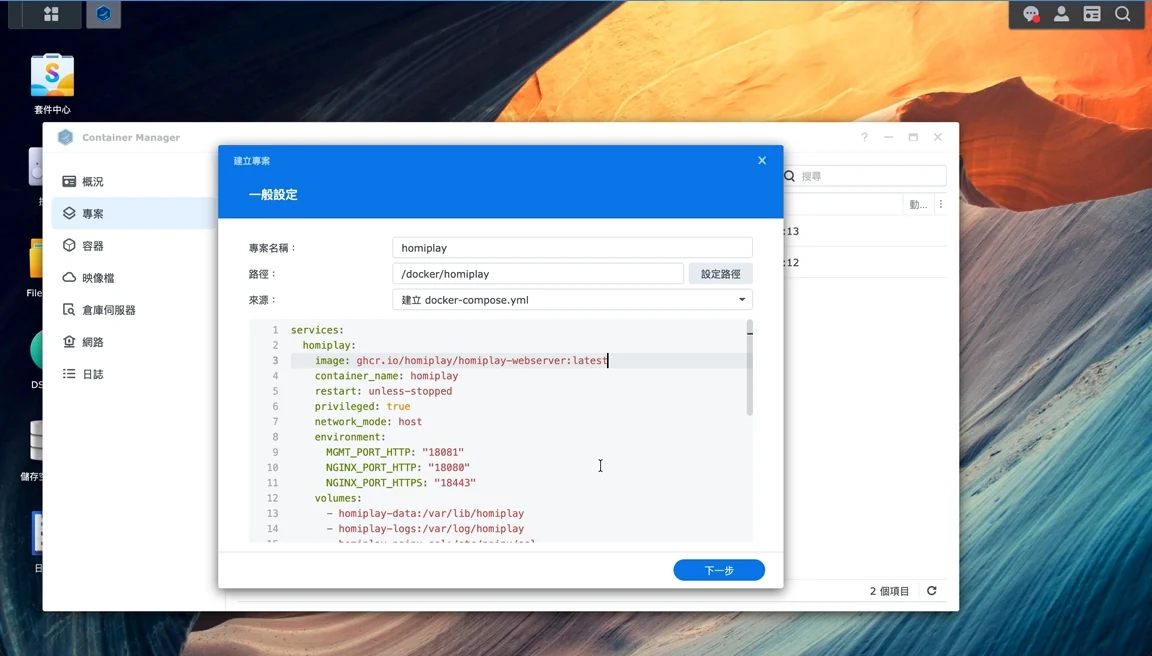
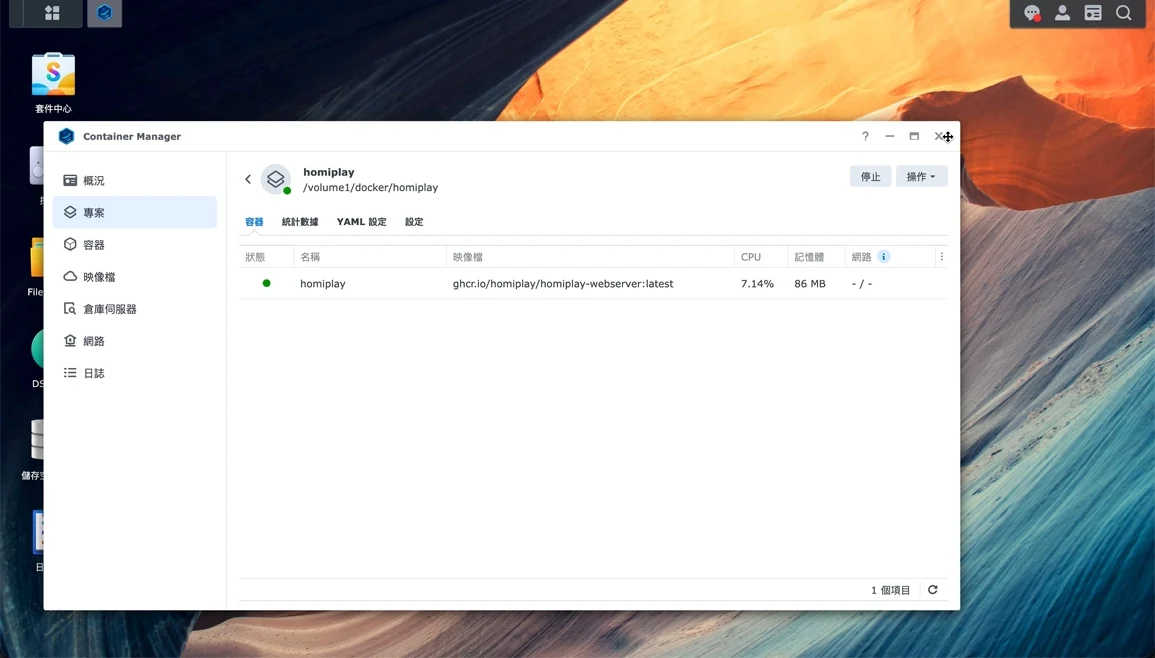
After deployment, confirm that the homiplay container shows a green Running status in Container Manager.
From your local network, open the HomiPlay dashboard (https://<NAS_IP>:18443) and sign in with an administrator account.
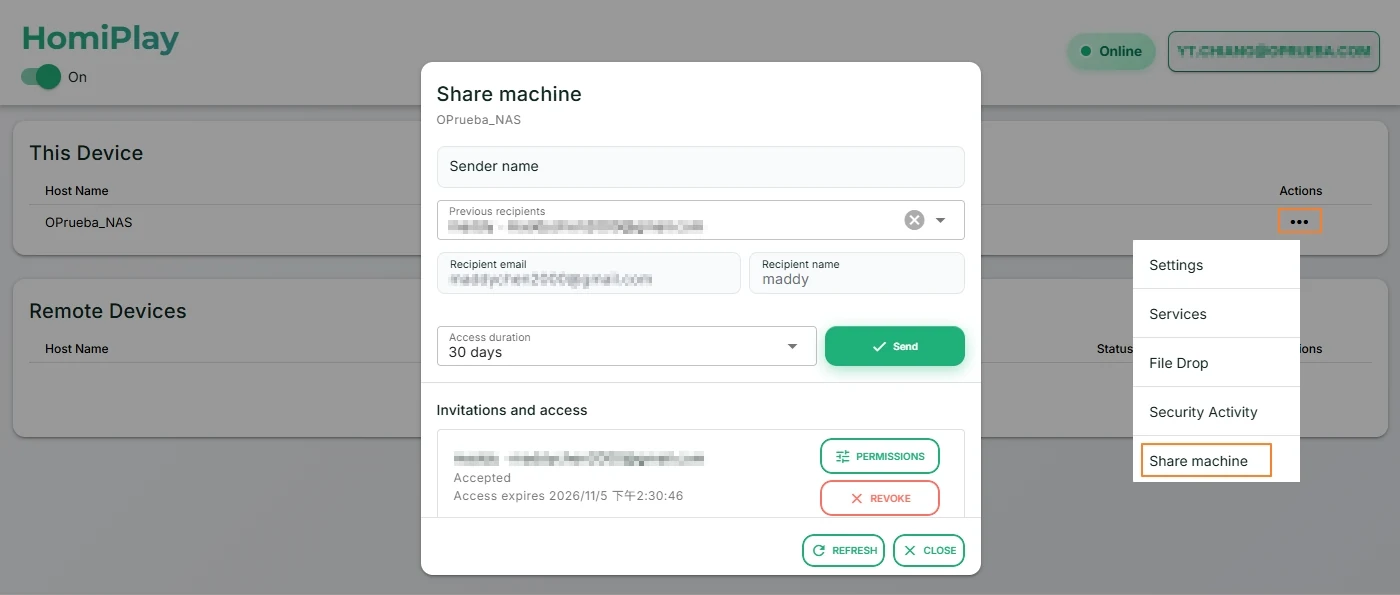
Share Machine: Open Share Machine from the device action menu, enter the recipient's HomiPlay account, set the access duration, and send the invitation.
Enable service ports: Select Services from the device action menu, choose the target port, click Edit, select the service type (such as HTTP / HTTPS), and click Enable.
The recipient signs in to HomiPlay and accepts the sharing invitation. Once the Synology NAS appears in the remote device list, select Services from its action menu and open the desired item.
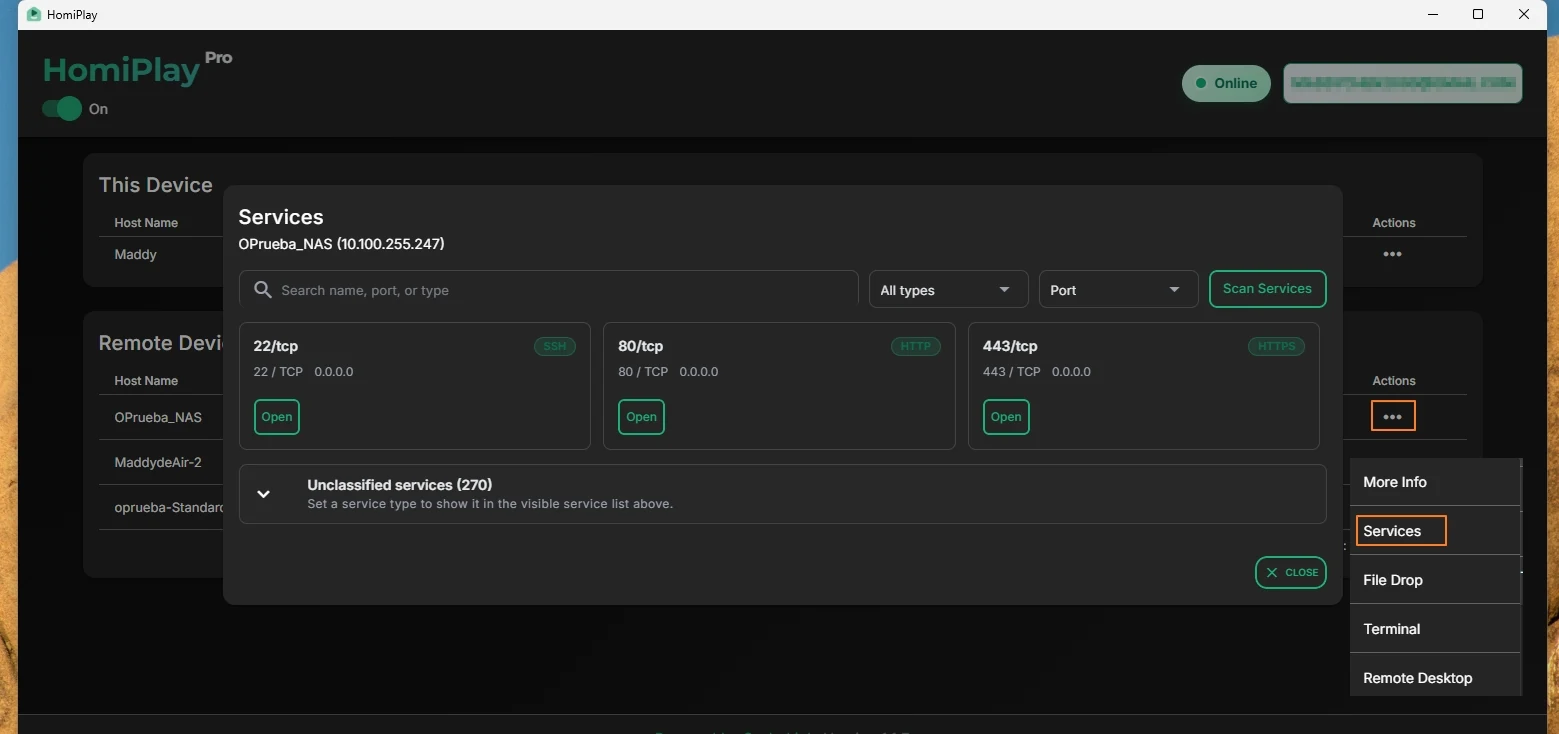
Open the NAS service from the Services list. HomiPlay launches a dedicated connection URL in your browser. You can also use the virtual IP and port to reach the Synology DSM sign-in page and work with your files remotely.
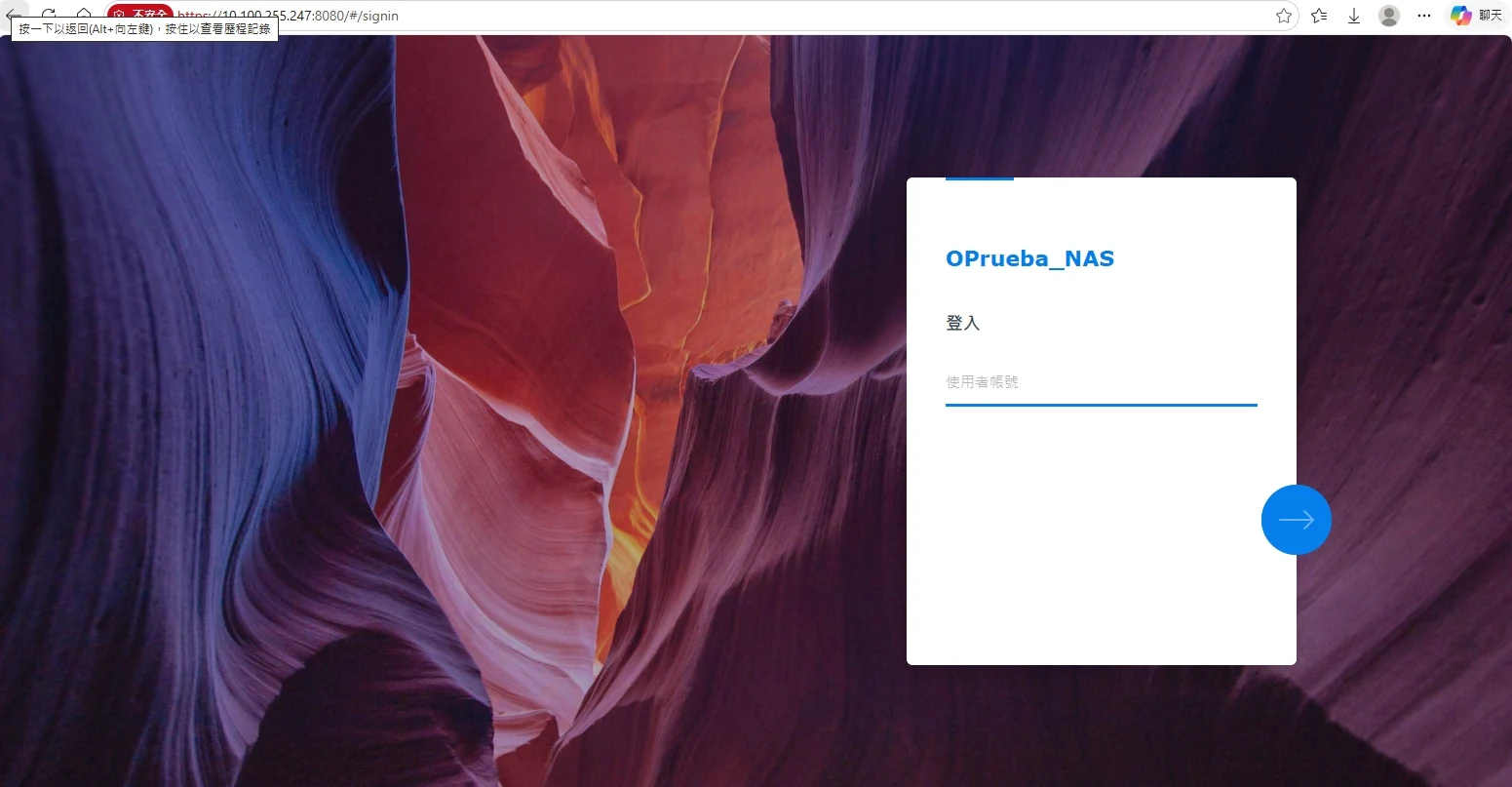
Share Machine lets you invite a specific HomiPlay account to access your NAS. Use Services to select which ports are available, set an invitation expiration, and revoke sharing when needed. File and user permissions on the NAS remain managed by Synology DSM.
Let them approve the connection at their computer, then help from elsewhere without exchanging passwords or leaving permanent access.
Learn MoreConnect through your home network even when you're away, maintaining a consistent network environment.
Learn MoreConnect through your home network, then open PS Remote Play and continue the game.
Learn MoreReach OpenClaw and local models without publishing them to the internet.
Learn MoreOpen that computer from home and continue where you stopped.
Learn MoreCheck the remote computer or handle a quick action before you get back.
Learn MoreMove it directly between computers without uploading it to the cloud first.
Learn MoreSend it directly without finding a cable or waiting for a cloud upload.
Learn MoreRoute the connection through your own home network before doing anything private.
Learn MoreNo complex setup—securely access your NAS anytime, anywhere
Learn More